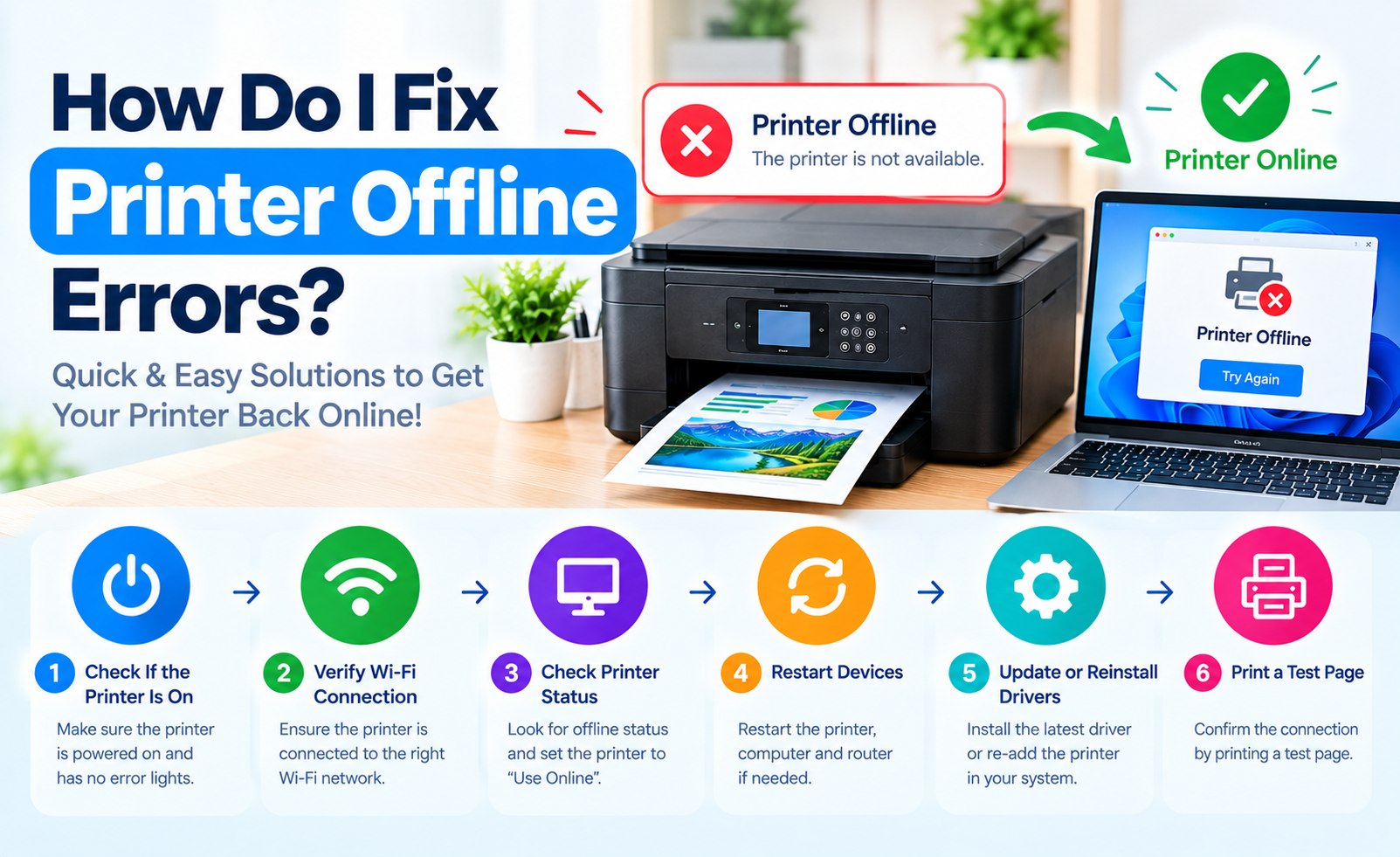
How Do I Fix Printer Offline Errors? Complete Troubleshooting Guide
Seeing an "Offline" message when you are trying to print can be frustrating, especially when the printer appears to be powered on and ready. A printer may appear offline because of a network connection, incorrect printer settings, a communication problem, a paused print queue, or an outdated driver.
The good news is that an offline status does not necessarily mean that the printer has a hardware problem. In many cases, checking the connection and refreshing the printer configuration can restore normal printing.
This guide explains practical ways to troubleshoot a printer that says offline on Windows or Mac. The exact menu names can vary depending on your printer model and operating system.
Why Does My Printer Say Offline?
A printer can show as offline when the computer is unable to communicate with it correctly. This can happen even when the printer itself is turned on.
Common causes include:
- The printer is not connected to the correct Wi-Fi network.
- The computer and printer are using different networks.
- A USB cable is loose or disconnected.
- The printer is paused or set to offline mode.
- A previous print job is stuck in the queue.
- The printer driver or software needs attention.
- The printer has changed its network connection or address.
Step 1: Check the Printer's Power and Status
Start with the simplest checks. Make sure the printer is turned on and does not display an error message on its screen or status panel.
Check for messages related to paper, ink or toner, paper jams, covers, or other conditions that could prevent the printer from accepting a print job.
If the printer has entered a sleep or energy-saving mode, allow it a few moments to become active before checking its status again.
Step 2: Check the Printer Connection
The next step depends on how your printer is connected to your computer.
For a wireless printer, check that Wi-Fi is enabled and that the printer is connected to the intended wireless network.
For a USB printer, inspect both ends of the cable. Disconnect and reconnect the cable firmly, and if possible, try another USB port.
If the printer uses a wired network connection, check that the Ethernet cable is securely connected and that the network equipment is working normally.
An offline printer status is often related to communication between the printer and the computer, so check the connection before changing advanced settings.
Printer Troubleshooting Tip
Setup Guide
Step 3: Make Sure the Computer and Printer Are on the Same Network
If you are using a wireless printer, the computer normally needs to be able to communicate with the same local network as the printer.
Check the Wi-Fi network name on your computer and compare it with the network connected to the printer. A change in the router, Wi-Fi password, or network configuration can cause the printer to become unavailable.
If the printer was recently moved to another location or the wireless router was replaced, you may need to reconnect the printer to the new network.
Step 4: Turn Off Printer Offline Mode in Windows
Windows can sometimes place a printer into an offline state. If the printer is connected and ready, check the printer queue settings.
- Open Windows Settings.
- Select Bluetooth & Devices.
- Open Printers & Scanners.
- Select the affected printer.
- Open the printer queue.
- Check whether the printer has been set to offline mode.
If an offline option is enabled, disable it when appropriate and check whether the printer status changes back to ready.
Step 5: Clear Stuck Print Jobs
A blocked print queue can prevent newer documents from reaching the printer. If several documents are waiting, one failed job may hold up everything behind it.
Open the printer's print queue and review the pending documents. Cancel jobs that are no longer required, then try sending a small test document again.
If the queue does not clear normally, restarting the printer and computer can refresh the connection and remove temporary communication problems.
Step 6: Restart the Printer and Network Devices
Restarting the printer can refresh its network connection and clear temporary errors.
If you are using a wireless printer, you can also restart the router when other devices are experiencing network connectivity problems.
After the devices restart, give the printer enough time to reconnect before checking its status on the computer.
Step 7: Check the Printer Driver
A printer driver helps the operating system communicate with the printer. If the driver is missing, outdated, damaged, or associated with the wrong printer model, printing may not work correctly.
Check whether the correct printer driver or printer software is installed for your printer model and operating system.
If you recently upgraded Windows or macOS, changed computers, or reinstalled the operating system, the printer may need to be added again or configured with compatible software.
Step 8: Remove and Add the Printer Again
If the printer continues to appear offline after checking the connection and queue, removing the printer from the computer and adding it again can refresh its configuration.
Before removing the printer, make sure you know how it connects to the computer and have any required driver or setup software available.
After adding the printer again, print a test page to verify that communication has been restored.
How to Fix a Wireless Printer That Keeps Going Offline
If a wireless printer repeatedly changes to offline status, the issue may be related to the wireless connection rather than the printer itself.
- Confirm that the printer is connected to the intended Wi-Fi network.
- Check the wireless signal where the printer is located.
- Avoid changing the router or Wi-Fi settings while troubleshooting.
- Reconnect the printer to Wi-Fi if the network password has changed.
- Restart the printer and router if the network connection is unstable.
- Check whether the printer's network status shows a valid connection.
How to Fix a Printer Offline Error on Mac
Mac users can check printer status through the Printers & Scanners section in System Settings.
- Open System Settings.
- Select Printers & Scanners.
- Select the affected printer.
- Review the printer status and available print queue.
- Cancel any unnecessary pending jobs.
- Check the printer connection and configuration.
If the printer still cannot communicate with the Mac, removing and adding the printer again may help refresh its configuration.
What If the Printer Shows Offline but Can Still Be Found?
Sometimes a computer can detect a printer but still display an offline or unavailable status. This can happen when the printer's connection information and the computer's saved configuration no longer match.
This situation can occur after changing a router, reconnecting the printer to Wi-Fi, changing network settings, or moving the printer between networks.
In such cases, reconnecting the printer to the correct network and adding it again can help establish a fresh connection.
Common Printer Offline Problems
Different printer setups can produce slightly different offline symptoms. Some common situations include:
- Printer says offline after changing Wi-Fi.
- Wireless printer disappears from the computer.
- Printer appears online but documents remain queued.
- Printer works from one computer but not another.
- Printer becomes offline after restarting the computer.
- Printer cannot be found after installing a new driver.
When Should You Reinstall the Printer?
Reinstalling the printer is worth considering when basic connection checks, queue cleanup, and restarts do not resolve the problem.
It can be especially useful when the printer was previously connected to another Wi-Fi network, the operating system was changed, or the existing printer configuration appears incorrect.
Before reinstalling, confirm that the printer itself is working and that you have the correct setup information for the model.
Printer Offline Troubleshooting Checklist
Use this quick checklist before moving to more advanced troubleshooting:
- Printer is powered on.
- Printer shows no paper or hardware error.
- Wi-Fi or USB connection is active.
- Computer can communicate with the printer.
- Printer is not set to offline mode.
- Print queue does not contain stuck jobs.
- Correct printer driver is installed.
- Printer has been restarted after major connection changes.
- Printer has been removed and added again if necessary.
Conclusion
A printer showing offline does not always indicate a serious problem. The cause can be as simple as a disconnected cable, an incorrect Wi-Fi connection, a stuck print queue, or an incorrect printer setting.
Start with the basic checks: confirm that the printer is powered on, verify its connection, clear pending print jobs, and check the printer status on your computer. If the problem continues, review the printer driver and consider removing and adding the printer again.
Because printer menus and software vary between manufacturers and models, some troubleshooting steps may look different on your device. Always use the instructions that match your specific printer and operating system when available.
Related Printer Setup & Troubleshooting Guides
Add Comment


Comments
Printer Troubleshooting Guide
Troubleshooting InformationHave a printer offline question? Share your question or troubleshooting experience in the comments.